
Futuro AI Animated Logo

Futuro Portal Complete Guide

Welcome to Futuro AI, where cutting-edge conversational artificial intelligence meets elegant design to create your perfect digital employee.

Get Started Client Login

Platform Overview

The Futuro AI Platform is a comprehensive customer engagement system powered by our proprietary VoiceAlive technology. It enables businesses to deploy intelligent AI agents that can handle customer interactions via voice and text, providing 24/7 availability with human-like conversation capabilities.

What is Futuro AI?

Futuro AI represents the convergence of advanced artificial intelligence with thoughtful, beautiful design. Every element—from the mesmerizing orb animations to the sophisticated Advanced Mode content generation—has been crafted to make AI assistance not just powerful, but genuinely enjoyable to use.

Whether you're conducting natural voice conversations, generating professional content, or leveraging specialized tools, your AI agent stands ready to amplify your capabilities. The interface responds to your every interaction with smooth animations and visual feedback, making each session feel less like using software and more like collaborating with an intelligent partner.

Key Capabilities

  • Voice Conversations: Real-time AI voice interactions with natural speech
  • Text Chat: Alternative text-based communication mode
  • Multi-language Support: English and Spanish interfaces
  • Custom Branding: Fully customizable UI themes and branding
  • Analytics Dashboard: Comprehensive call tracking and performance metrics
  • AI Memory: Persistent conversation memory and context retention
  • Tool Integration: Connect with calendars, CRM systems, and other business tools
Futuro AI Dashboard

Voice Mode

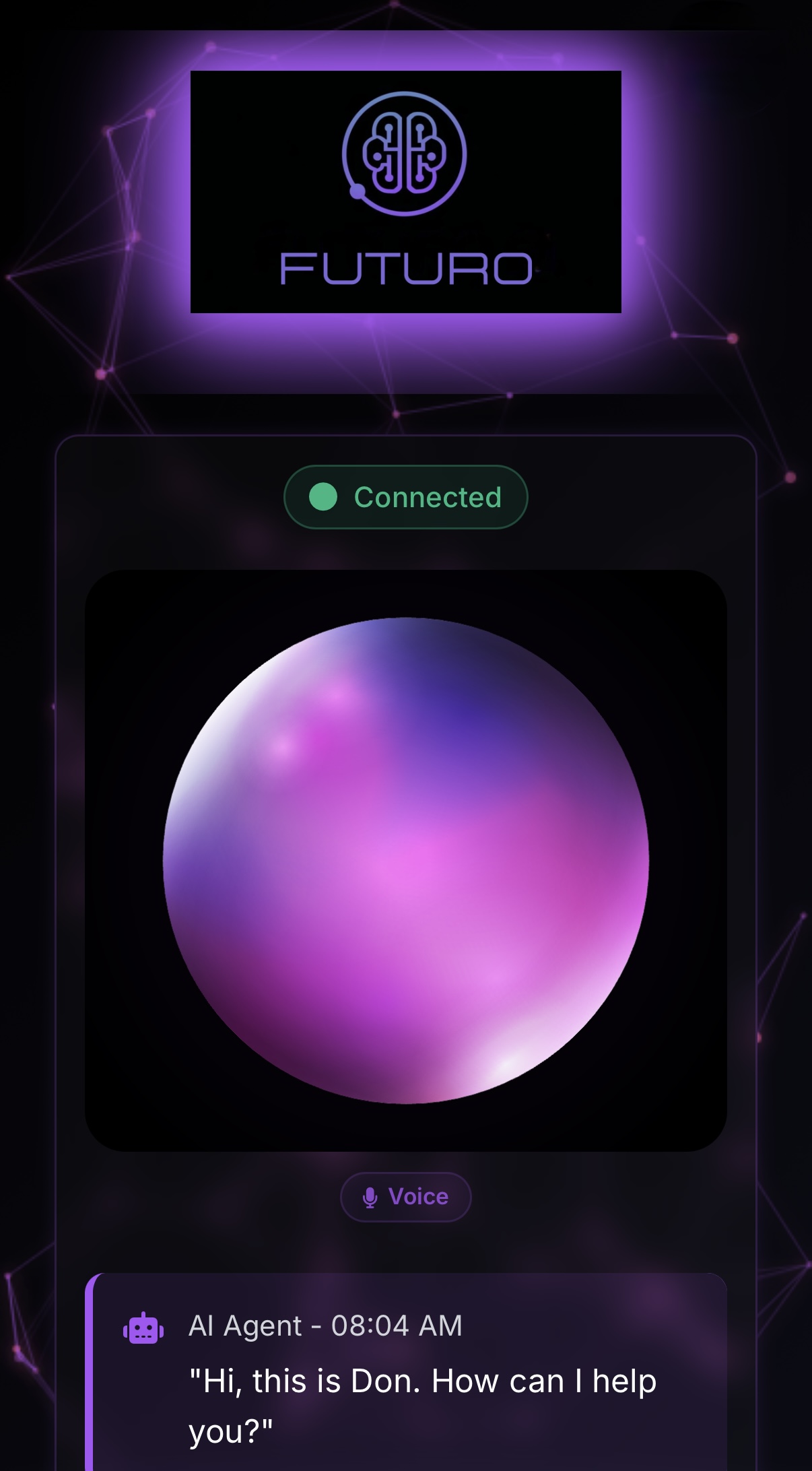
Voice mode is the default interaction method, designed to feel as natural as talking to a human assistant.

Voice Mode Interface

How to Use Voice Mode

  1. Click the "Start Call" button - This prominent purple gradient button initiates your session
  2. Grant microphone permissions when prompted - This one-time setup enables voice interaction
  3. Speak naturally - Your AI agent uses advanced Futuro Conversational AI technology to understand context, nuance, and intent
  4. Watch the orb respond - Visual feedback shows when the AI is listening, processing, and responding

During voice conversations, you can interrupt at any time—just like a natural conversation. The AI will pause and listen to your new input. The conversation status indicator at the top of the panel shows "Connected" in green when your session is active.

To end a voice session, simply click the "End Call" button. Your conversation history is preserved and can be reviewed later in the Recent Calls section.

Visual Feedback States

  • Idle State: When waiting, the orb gradient moves gently with a soothing purple glow
  • Listening: When you speak, the orb's color will change with rotations correlated to your speech
  • Thinking: While processing a complex request, particle effects swirl around the orb
  • Speaking: During responses, the orb animates with flowing animated sound waves radiating outward

Text Mode

For situations where voice interaction isn't suitable, Text Mode provides a powerful alternative.

How to Use Text Mode

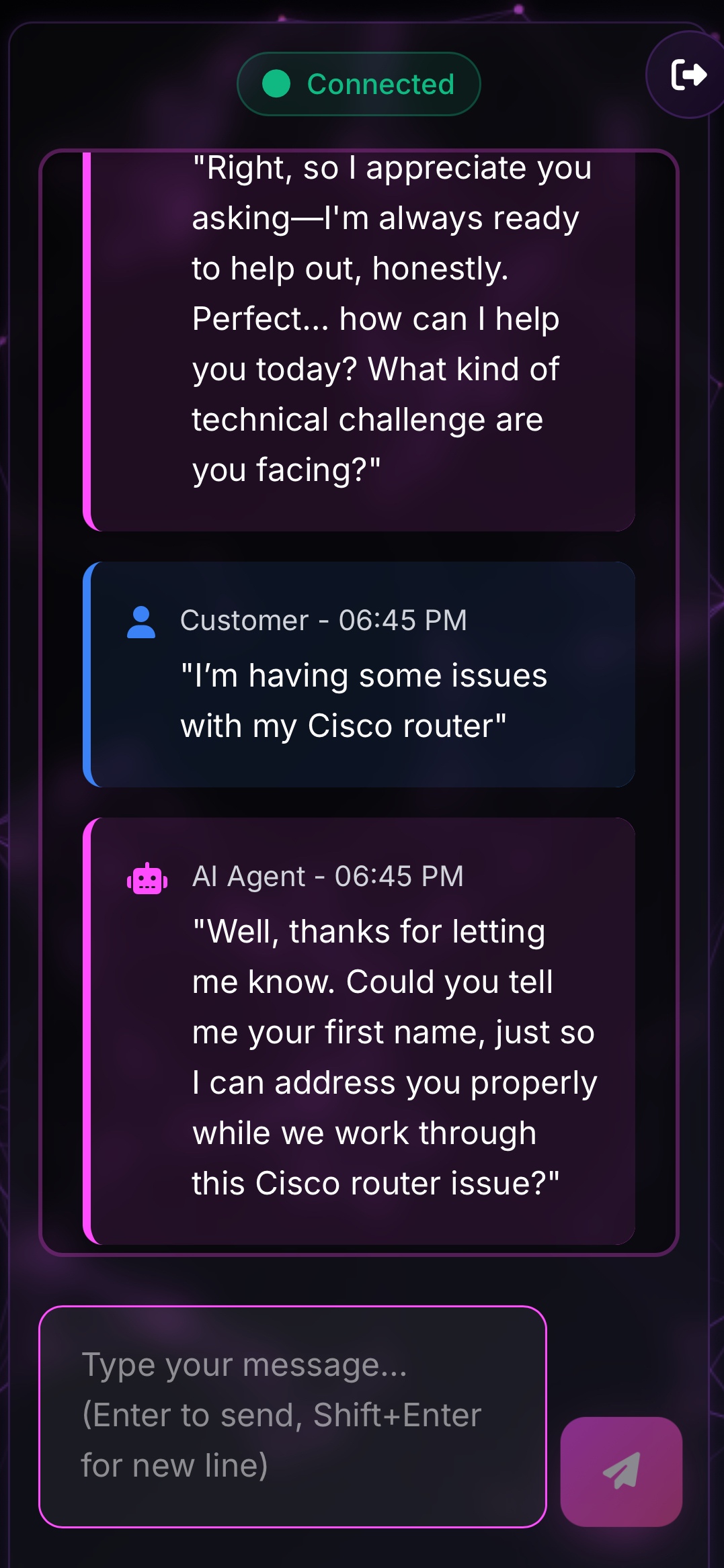
  1. Click "Text Mode" to switch from voice to text interaction
  2. The orb gracefully disappears, replaced by an elegant text input interface
  3. Type your message in the expanding text area that appears
  4. Press Enter to send (or Shift+Enter for new lines in longer messages)
  5. View the conversation in a beautifully styled chat interface with clear user/AI message distinction

Text mode is perfect for:

  • Quiet environments where speaking isn't appropriate
  • Complex queries that benefit from careful composition
  • Sharing URLs, code, or technical information
  • Maintaining a written record of important conversations

Text Features

  • Message History: Scrollable conversation log
  • Typing Indicators: Shows when AI is composing response
  • Rich Responses: Formatted text with emphasis and structure
  • Copy/Paste Support: Standard text operations
Text Mode Interface

Advanced Mode

Introducing Advanced Mode - transforms your AI assistant into a professional content creation powerhouse.

Advanced Mode

Content Generation Options

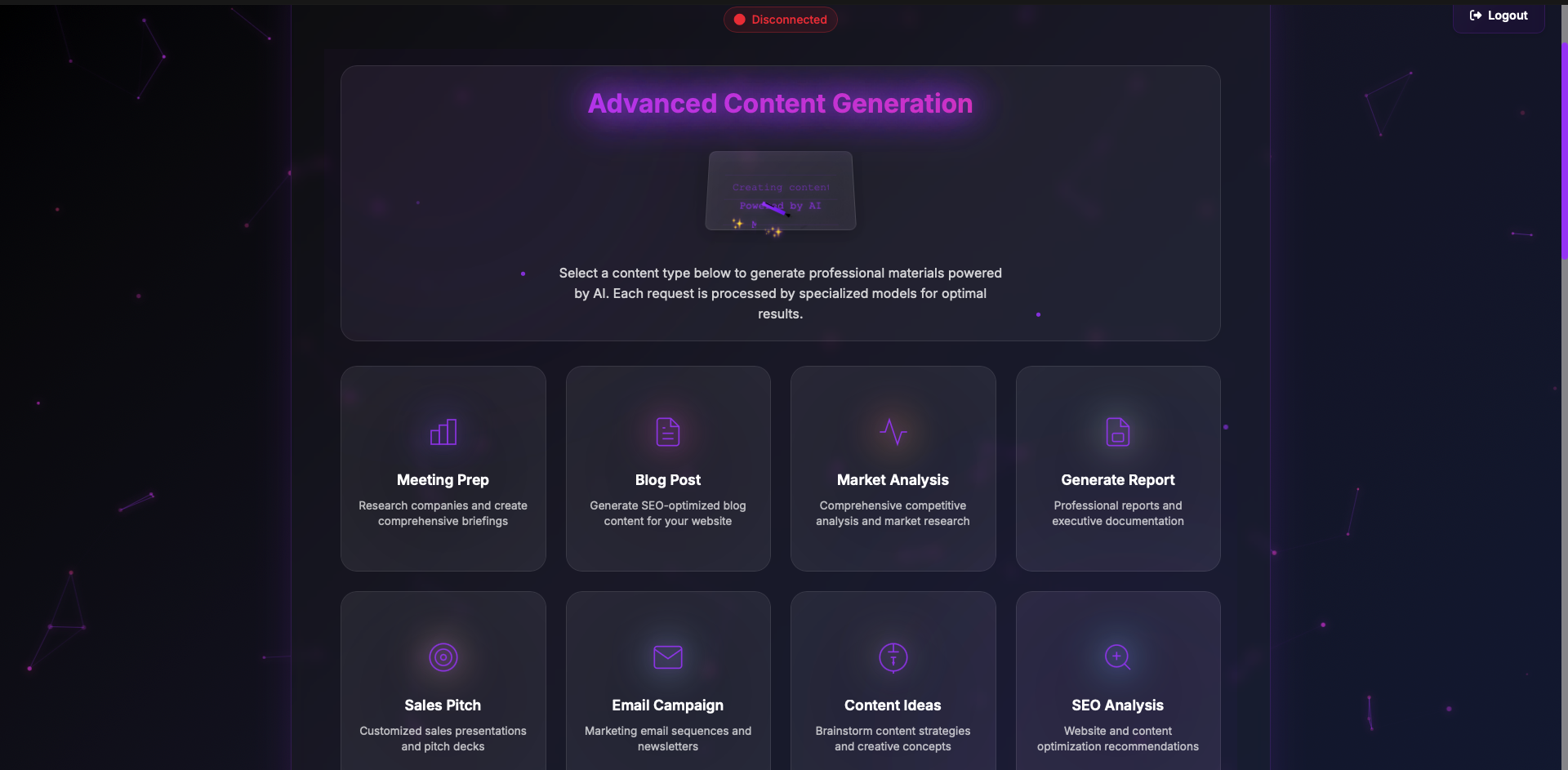
Advanced Mode presents eight specialized content generation options, each represented by a beautifully designed glass-morphism card with unique gradient backgrounds and custom icons:

Meeting Prep

Generate comprehensive briefings for upcoming meetings. Simply provide the company name or meeting topic, and receive detailed research including key stakeholders, recent developments, talking points, and strategic insights—all formatted professionally and ready for immediate use.

Blog Post

Create SEO-optimized blog content that ranks and engages. Input your topic or keywords, and the AI crafts compelling articles complete with headers, subheadings, meta descriptions, and call-to-action elements. Each blog is tailored to your industry and audience.

Market Analysis

Receive deep competitive intelligence and market insights. The AI analyzes industry trends, competitor strategies, market opportunities, and potential threats, delivering actionable intelligence for strategic decision-making.

Generate Report

Transform raw data and ideas into professional reports. Whether you need quarterly reviews, project summaries, or executive briefings, this tool creates structured, well-formatted documents that impress stakeholders.

Sales Pitch

Craft persuasive sales presentations tailored to specific prospects. The AI generates customized pitch decks, value propositions, objection handlers, and closing strategies based on your product and target audience.

Email Campaign

Design complete email marketing sequences that convert. From welcome series to nurture campaigns, get professionally written emails with subject lines, preview text, and CTAs optimized for engagement.

Content Ideas

Never run out of content again. Generate creative concepts for social media, video scripts, podcast topics, or any content format. Each suggestion comes with implementation notes and engagement strategies.

SEO Analysis

Optimize your digital presence with comprehensive SEO recommendations. Analyze websites, content, or keywords to receive actionable insights on improving search rankings and organic traffic.

Using Advanced Mode

The workflow for each content type is elegantly simple:

  1. Select a content type by clicking its beautiful gradient card (watch the hover effects!)
  2. A modal appears with a text input field limited to 500 characters
  3. Describe your needs concisely but with enough detail for context
  4. Click Submit and watch the magic begin
  5. Progress animation shows a filling bar that reaches 100% over 25 seconds
  6. "Retrieve Results" button appears with an animated arrow pointing to it
  7. Click to receive your professionally generated content via a unique URL

The entire process takes approximately 30 seconds, during which beautiful animations and progress indicators keep you informed and engaged.

Analytics Dashboard

Detailed reporting and business intelligence that goes far beyond basic call logs. Get actionable insights to optimize your operations and maximize ROI.

Access Credentials

To access the advanced analytics dashboard, use the following credentials:

  • Username: Your agent ID (e.g., agent_5101k4ddbjqzfro)
  • Password: Provided separately (e.g., Kk7B28j!RrEes)
  • Dashboard URL: https://futurodata.com
  • Access Level: Based on account permissions

Available Metrics

Call Analytics:

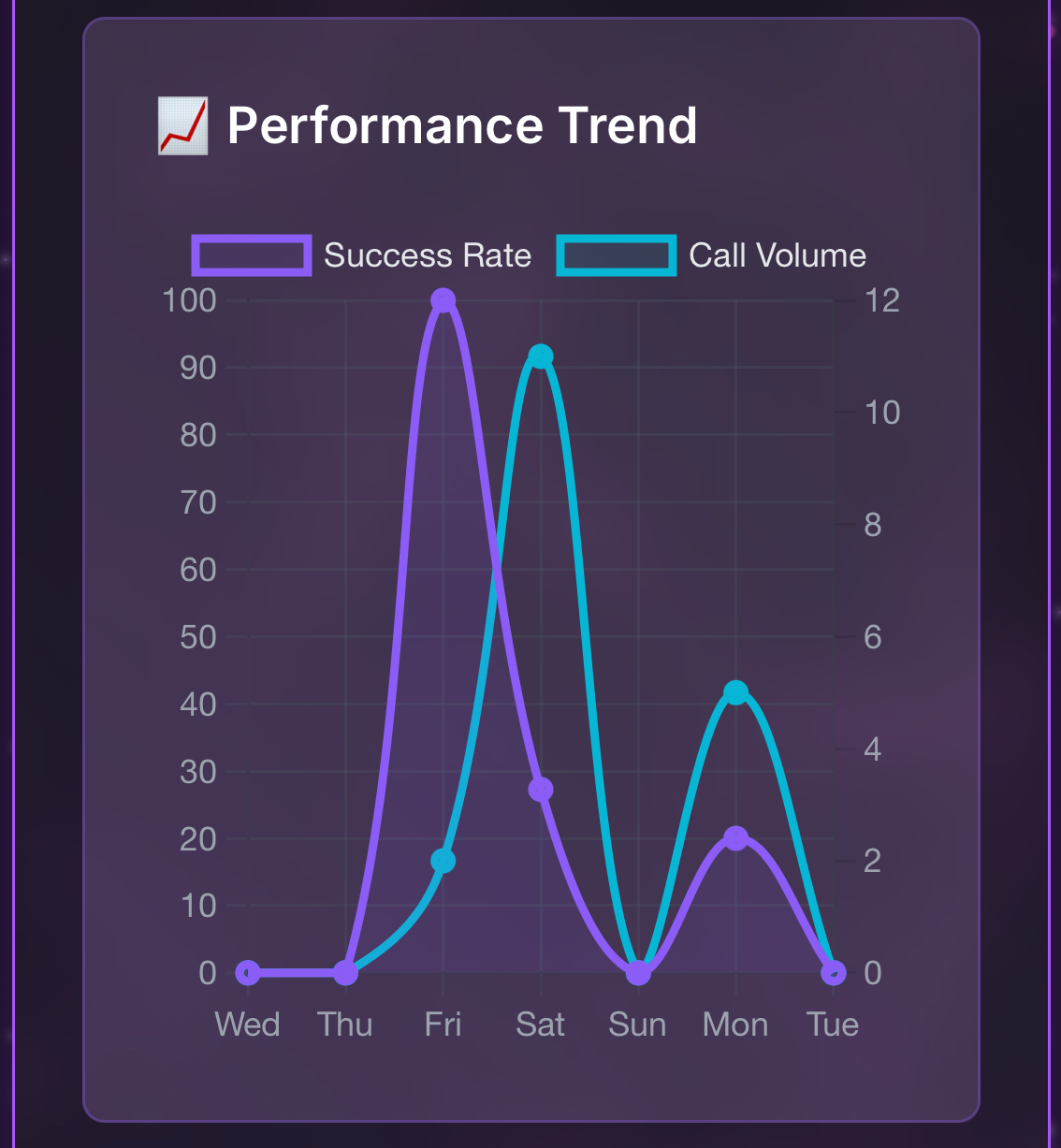
  • Total Call Volume: Daily, weekly, monthly trends
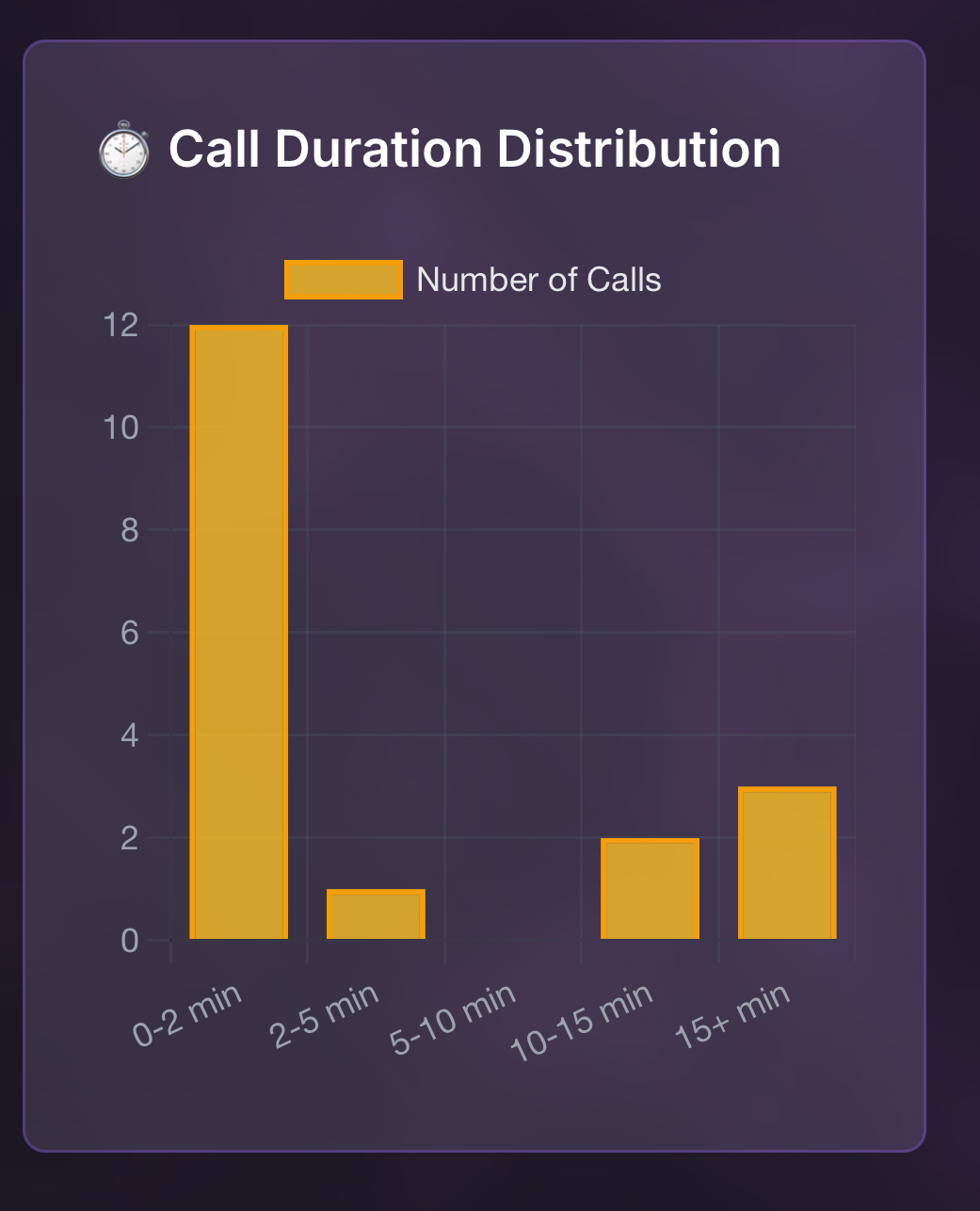
  • Call Duration Distribution: Average and median lengths
  • Peak Usage Times: Hourly activity patterns
  • Geographic Distribution: Caller locations (if available)

Performance Metrics:

  • Response Time: AI reaction speed
  • Conversation Quality: Sentiment analysis
  • Resolution Rate: Successful interaction percentage
  • Escalation Frequency: Human handoff requests

Client Insights:

  • Repeat Callers: Customer retention metrics
  • Satisfaction Indicators: Positive/negative sentiment
  • Common Topics: Frequently discussed subjects
  • Intent Recognition: Purpose of interactions

Report Generation

  • Export Options: PDF, CSV, Excel formats
  • Scheduled Reports: Automated daily/weekly summaries
  • Custom Date Ranges: Flexible time period selection
  • Comparison Views: Period-over-period analysis

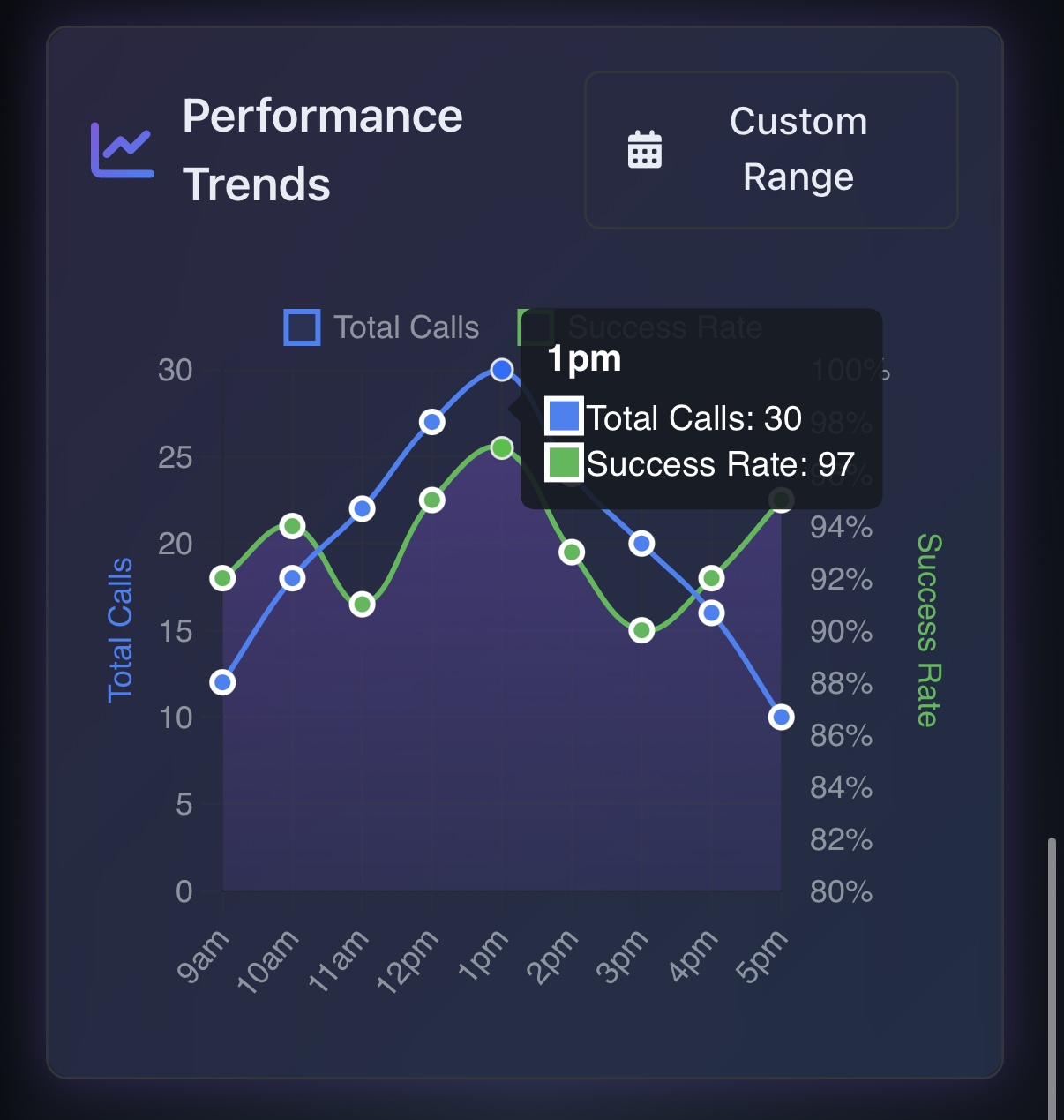
Analytics Dashboard

Dashboard Metrics Summary
Call Volume Trends
Call Volume Trends Chart
Response Time Analysis
Response Time Analysis Chart

Agent Memory Center

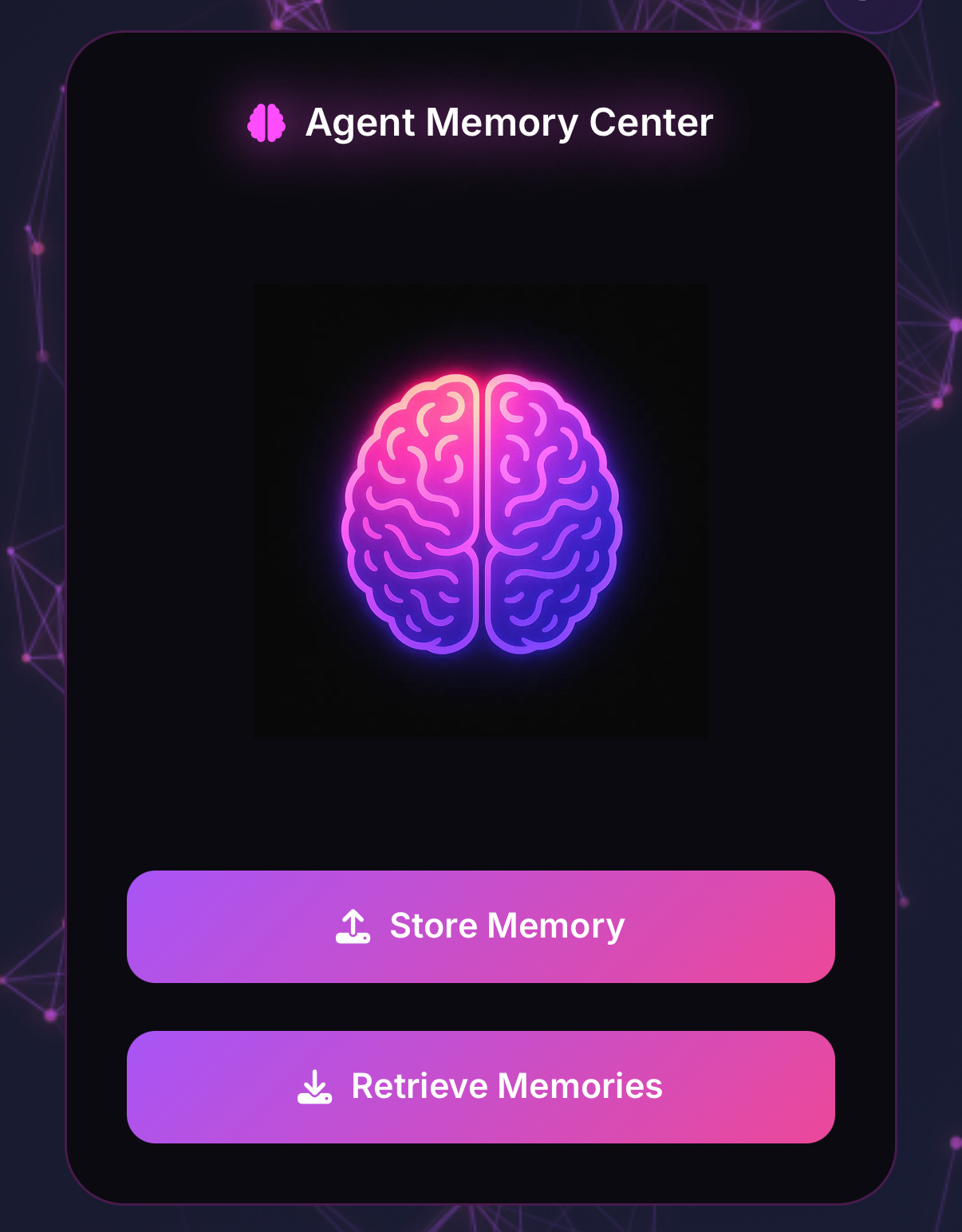
Your AI agent isn't just responsive—it's capable of learning and remembering. The Agent Memory Center allows you to store important information that persists across conversations.

Agent Memory Center

Understanding Agent Memory

The AI Memory Bank is a persistent storage system that allows the AI agent to remember:

  • Previous conversations
  • Customer preferences
  • Important context
  • Business rules
  • Custom instructions

Storing Memories

To store a new memory:

  1. Click the "Store Memory" button in the Memory Center
  2. Type or paste the information (up to 500 characters)
  3. Submit to permanently save this context
  4. Receive confirmation with animated success indicators

Retrieving Memories

Access stored memories instantly:

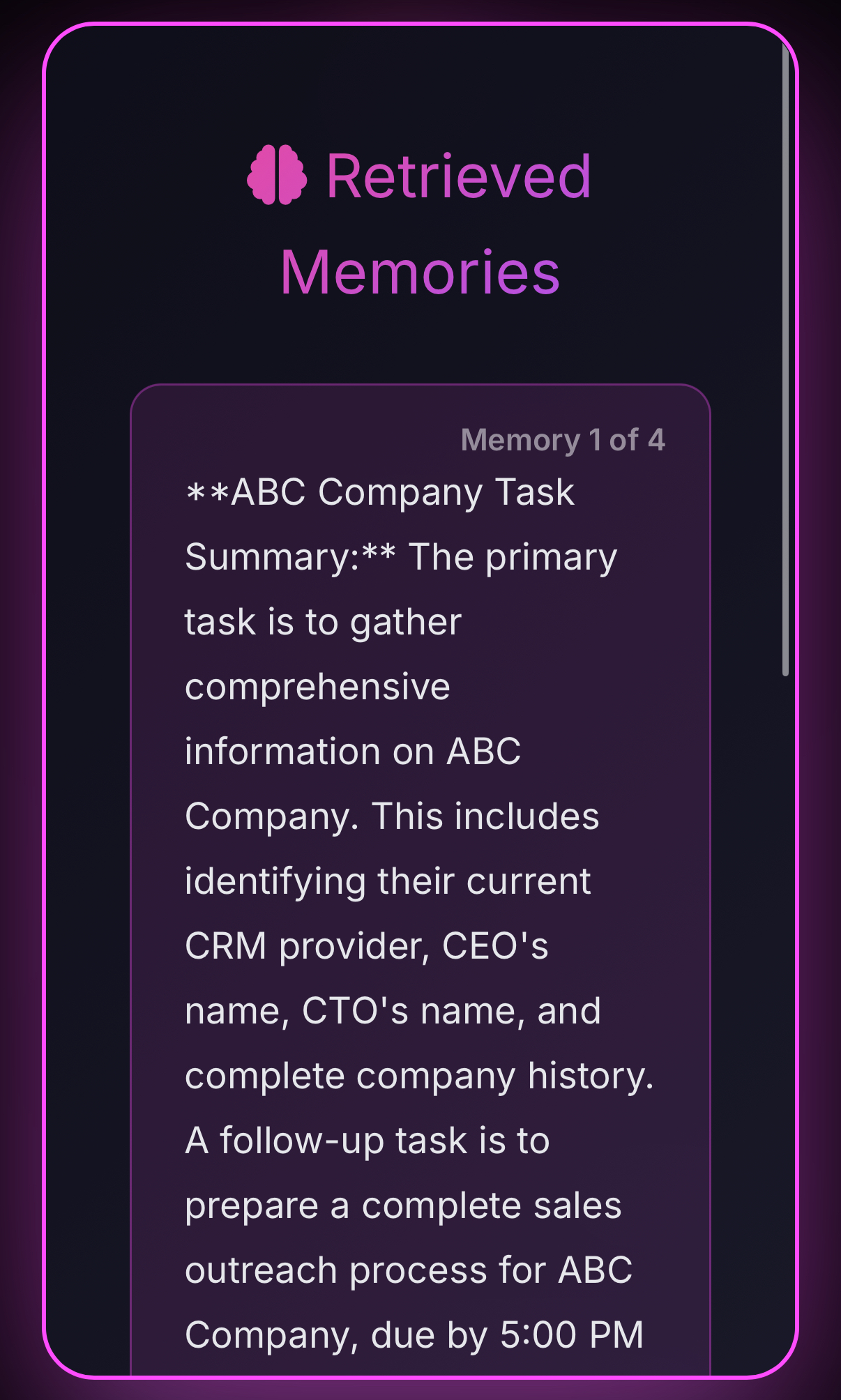
  1. Click "Retrieve Memories"
  2. View your five most recent memory entries
  3. Each displays with timestamp and full content
  4. Memories automatically influence future conversations
Retrieved Memories

Memory Features

  • Automatic Memory Creation: Conversation summaries, customer details, issue tracking, preference learning
  • Memory Retrieval: Context loading, similarity matching, temporal awareness
  • Cross-session Continuity: Maintains context across calls

Memory Management

  • Manual Addition: Add custom memories
  • Editing: Modify existing memories
  • Deletion: Remove outdated information
  • Export/Import: Backup memory data

Tools Panel

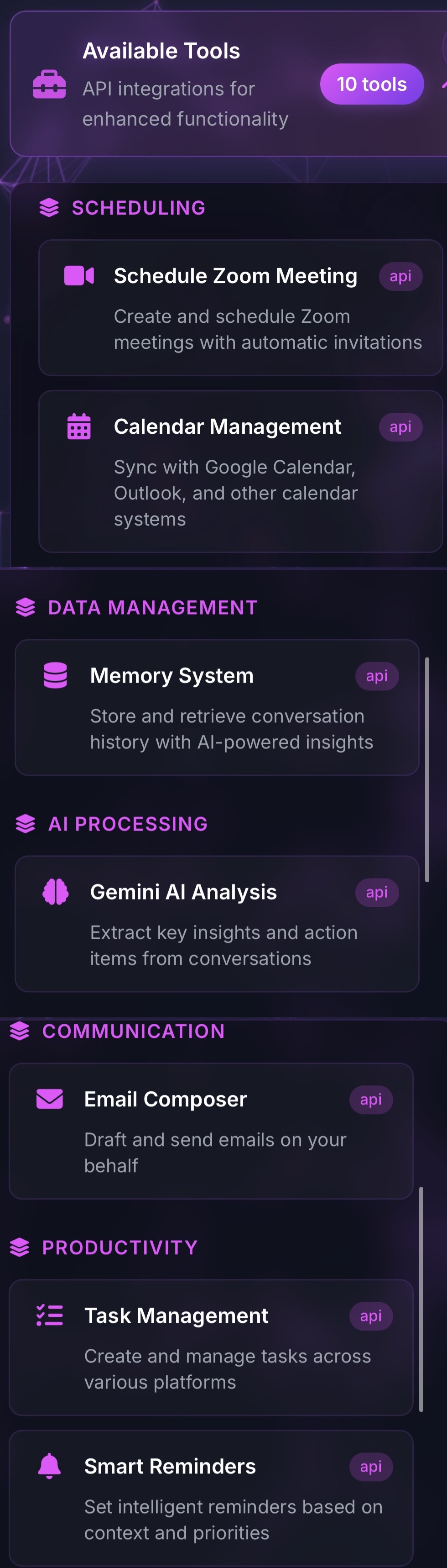
Futuro’s AI agents have access to over 200 specialized tools that extend its capabilities far beyond simple conversation.

Available Tool Categories

Available Tool Categories

Productivity Tools

  • Calendar management and scheduling
  • Task creation and tracking
  • Document generation and editing
  • Email composition and sending

Research Tools

  • Real-time web searches via Perplexity
  • Academic paper summaries
  • Market data analysis
  • Competitor research

Creative Tools

  • Image generation and editing
  • Content ideation and writing
  • Design suggestions
  • Brand voice development

Technical Tools

  • Code generation and debugging
  • API integration assistance
  • Database query creation
  • System architecture planning

Tool Configuration

To activate a tool:

  1. Navigate to Tools Panel
  2. Select desired integration
  3. Click "Configure" button
  4. Enter required credentials
  5. Test connection
  6. Save configuration

Security Considerations

  • OAuth 2.0: Secure authentication
  • API Key Management: Encrypted storage
  • Permission Scopes: Minimal access principle
  • Regular Audits: Security reviews
Tools Panel

Support System

Located in the bottom corner, the Support Widget provides instant access to assistance.

Support Widget

24/7 Support Access

To access support:

  1. Locate Support Center card (below main panels)
  2. Click "Talk to 24/7 Support" button
  3. Modal window opens with support widget
  4. Click phone icon to initiate support call

Support Capabilities

  • Technical Troubleshooting: Connection and audio issues
  • Feature Guidance: How to use platform features
  • Account Questions: Billing and subscription queries
  • Integration Help: Setting up tools and connections
  • Best Practices: Optimization recommendations

Quick Guides

  • Getting Started (5 min read)
  • Voice Configuration (3 min read)
  • Using Agent Tools (7 min read)
  • Understanding Analytics (4 min read)
  • Troubleshooting (6 min read)

Contact Information

📞 Phone: 1-855-490-5531
✉️ Email: support@futurocorp.com
📍 3001 North Rocky Point Drive East, Tampa, FL, 33607

Troubleshooting Guide

Connection Problems:

  • Check internet connection stability
  • Verify Agent ID is correct
  • Try refreshing browser page
  • Switch to text mode as alternative

Audio Issues:

  • Check speaker/headphone connection
  • Verify system volume settings
  • Ensure correct input device selected
  • Test browser microphone permissions

Performance Issues:

  • Check internet bandwidth (minimum 5 Mbps)
  • Clear browser cache
  • Close unnecessary applications
  • Use modern browsers (Chrome, Firefox, Safari)